Guides · Walkthrough
Comparing images
Find what changed between two versions of a chart, a design or a screenshot. The replica uses the real sample charts, so every mode works as it does in PowerLens.
Choose two pictures and they are compared as pictures. The column heads give each one’s size in pixels, its format and its file size, so a resize or a heavier export is easy to spot.
Step 1 of 9Two pictures, A and B
Achart-v1.pngPNG640 × 400 px · 6.6 KB
Bchart-v2.pngPNG640 × 400 px · 10 KB
A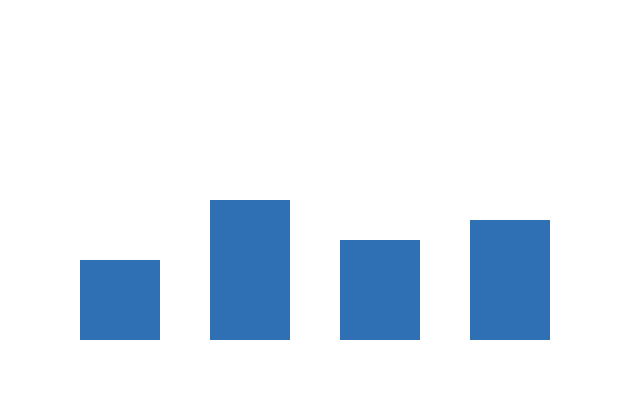
B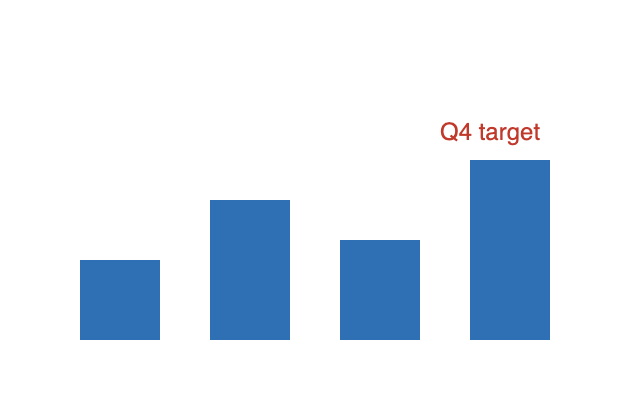
It works: try the buttons. Hover to find the parts the steps explain, and click one to jump to it.
What it reads
| Format | Files | Good to know |
|---|---|---|
| PNG | .png | Best for screenshots, charts and designs. |
| JPEG | .jpg .jpeg | Best for photos. Raise the sensitivity to catch the faintest edits. |
| GIF, WebP, BMP | .gif .webp .bmp | |
| SVG | .svg | Drawn by the browser, then compared as a picture. |
Tips
- Resized is not changedA picture that was only resized or saved again is recognised by what it shows, so it is not reported as a change.
- Pictures inside documentsClick a picture in a compared document to open these same tools in a dialog. The list of changes shows changed pictures as thumbnails.
- KeyboardN and P step through the changed areas, and 1 to 4 switch modes.
Try the image samples: a sales chart as PNG and an event poster as SVG.